Music & Voiceover
Storyline Forge lets you add background music and a voiceover narration to any project. Both are generated by AI from a text description you provide Both are attached to your project from the Projects page, and are not accessed from inside the storyboard workspace.
How to Access
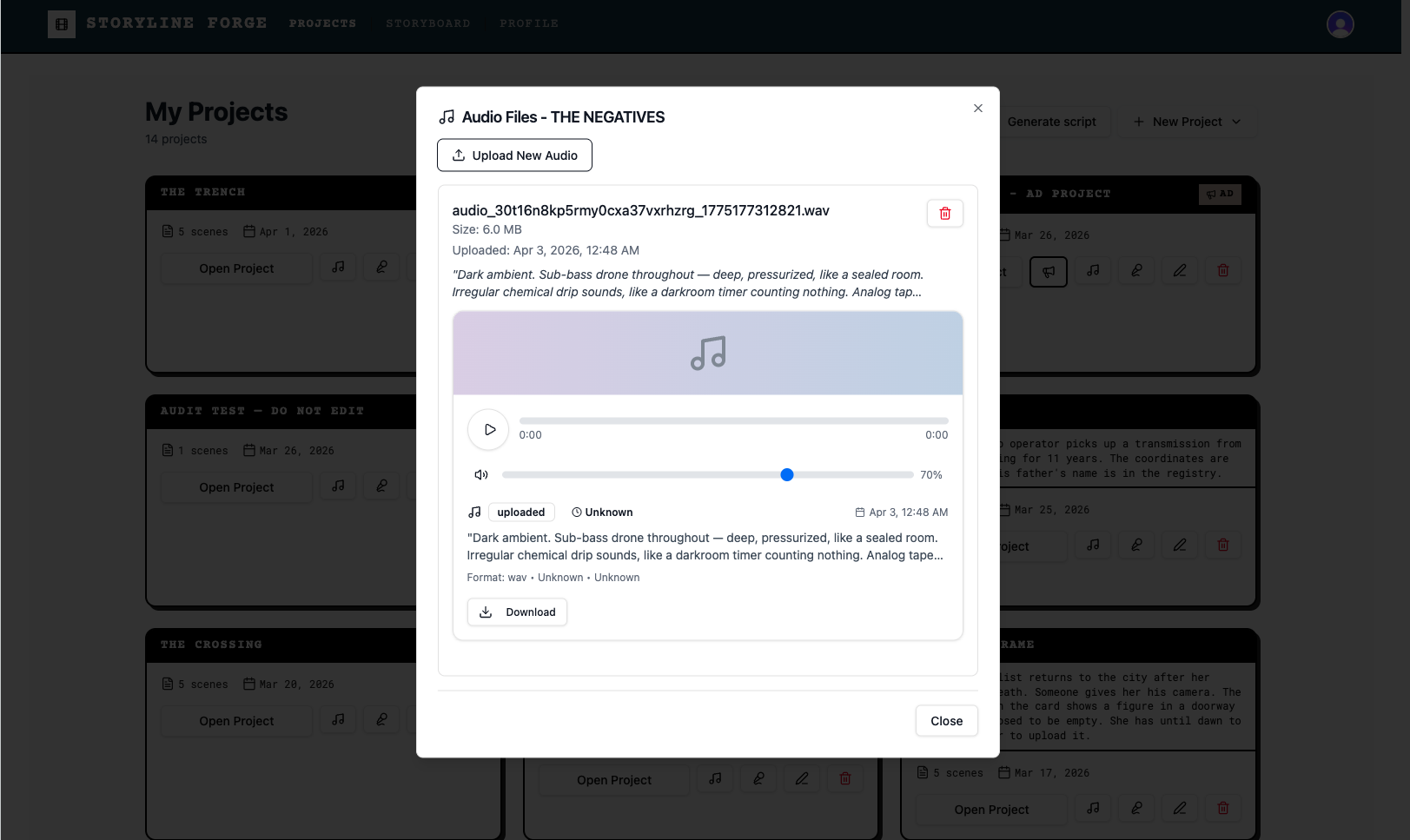
Open the Projects page and locate your project card. Each card displays two audio icons below the Open Project button:
Music note icon — opens the Music generation modal
Microphone icon — opens the Voiceover generation modal
Music note icon — opens the Music generation modal
Microphone icon — opens the Voiceover generation modal
Generating Background Music
Click the music note icon on your project card to open the Audio Generation modal.
Model: Choose between Lyria 2 (Google — high-quality 30-second audio at 48kHz stereo) and ElevenLabs Music (custom length and format). Lyria 2 is selected by default.
Audio Description: Enter a detailed description of the music you want. Include genre, mood, instrumentation, pacing, and texture. The field accepts up to 500 characters. Vague prompts produce generic results — the more specific you are, the better the output.
Negative Prompt (optional): Describe elements to exclude — for example, "No vocals. No drums. No upbeat elements." Use this to steer the model away from unwanted sounds.
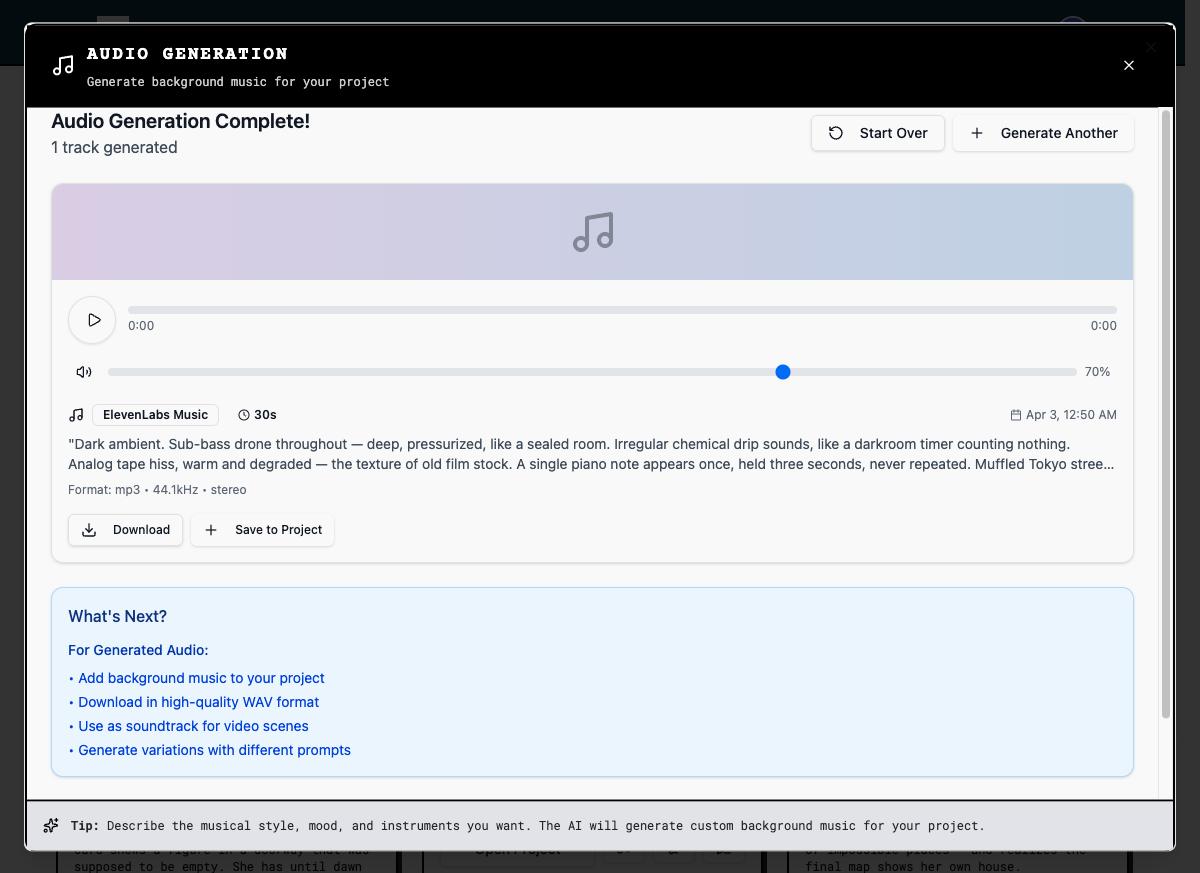
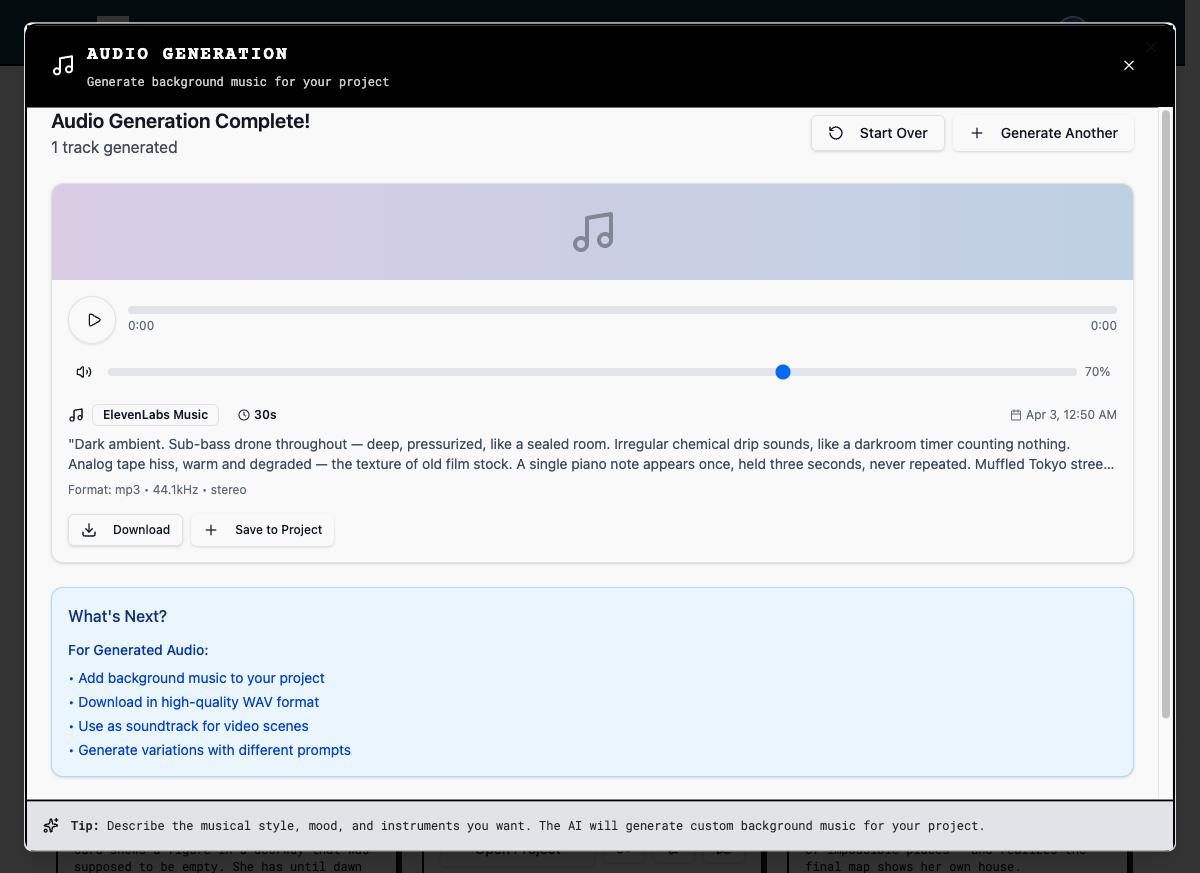
Click Generate Audio. Generation typically takes 30–60 seconds. When complete, a preview player appears. Click Save to Project to attach the track to your project.
Model: Choose between Lyria 2 (Google — high-quality 30-second audio at 48kHz stereo) and ElevenLabs Music (custom length and format). Lyria 2 is selected by default.
Audio Description: Enter a detailed description of the music you want. Include genre, mood, instrumentation, pacing, and texture. The field accepts up to 500 characters. Vague prompts produce generic results — the more specific you are, the better the output.
Negative Prompt (optional): Describe elements to exclude — for example, "No vocals. No drums. No upbeat elements." Use this to steer the model away from unwanted sounds.
Click Generate Audio. Generation typically takes 30–60 seconds. When complete, a preview player appears. Click Save to Project to attach the track to your project.
Generating a Voiceover
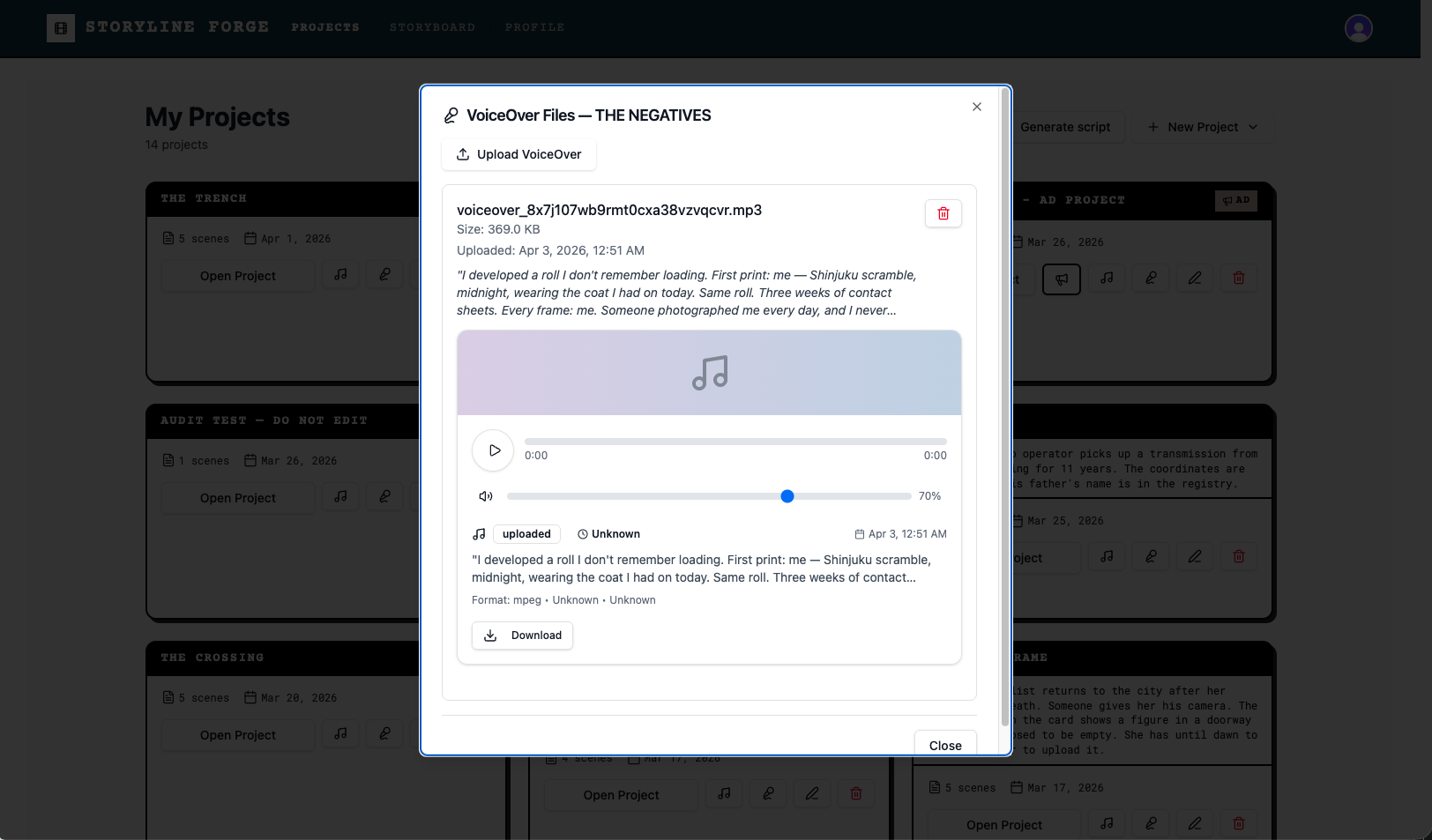
Click the microphone icon on your project card to open the Voiceover modal.
Voice: Choose from twelve available voices, each with a short description — for example, Rachel (calm, professional female narrator) or Aria (expressive, versatile female). Select the voice that best fits your story's tone.
Script: Enter the narration text to be spoken. For 25 seconds of video, aim for 50–55 words. Spoken English runs roughly 2.5 words per second.
Click Generate Voiceover. Generation typically takes 30–60 seconds. When complete, click Use This Voiceover to attach it to your project.
Voice: Choose from twelve available voices, each with a short description — for example, Rachel (calm, professional female narrator) or Aria (expressive, versatile female). Select the voice that best fits your story's tone.
Script: Enter the narration text to be spoken. For 25 seconds of video, aim for 50–55 words. Spoken English runs roughly 2.5 words per second.
Click Generate Voiceover. Generation typically takes 30–60 seconds. When complete, click Use This Voiceover to attach it to your project.