Projects
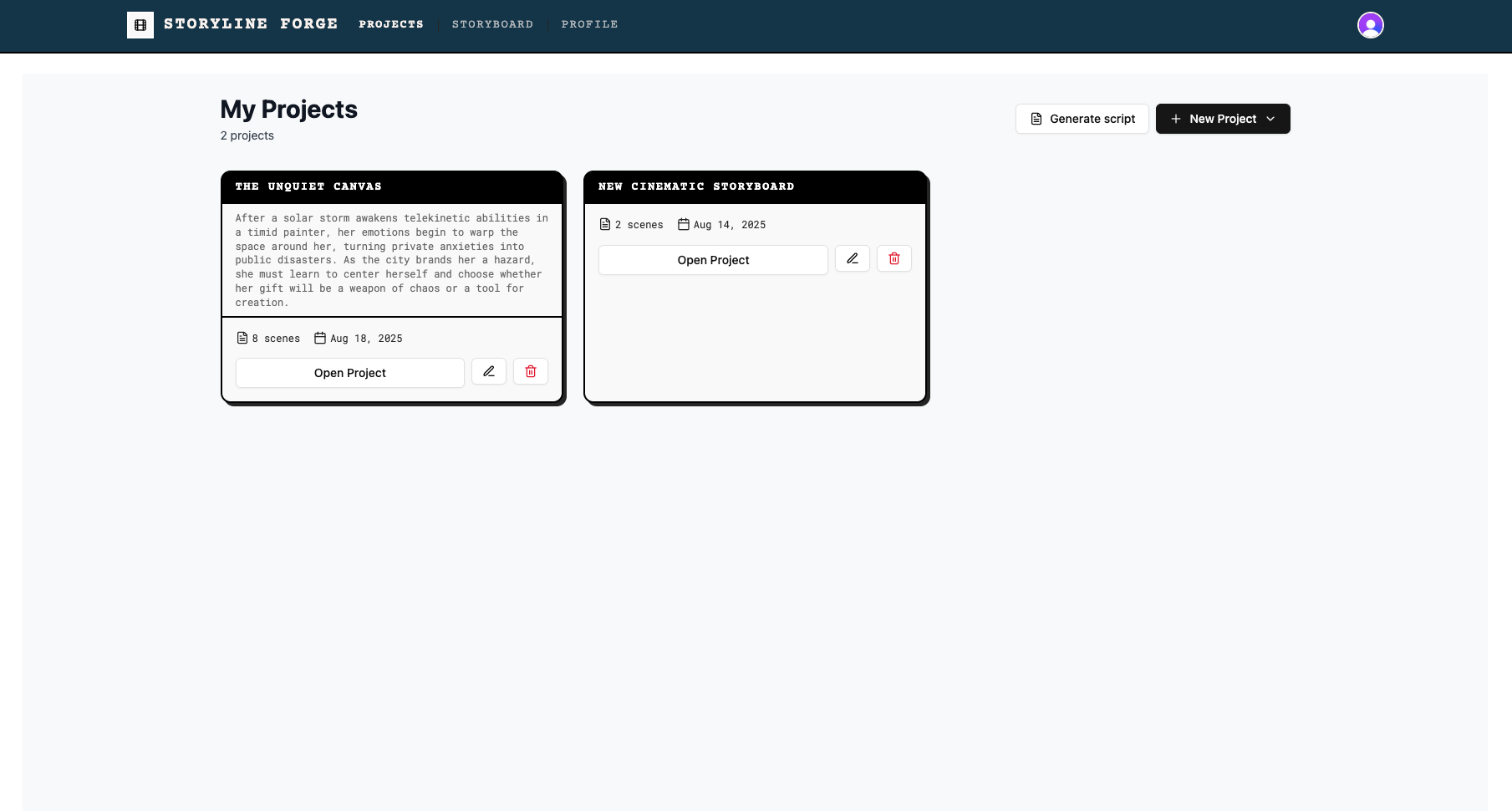
Projects User Guide
This guide explains how to use the Projects view in Storyline: Forge to manage your storyboard projects effectively.
Project Creation
Choose Project Type:
Cinematic Storyboard - For movies, shows, and narrative content
Ad Storyboard - For advertising campaigns and marketing content
Generate Script (Cinematic only) - A standalone button located next to New Project. Opens a separate modal where you can generate a full script before creating a project.
Curated Prompts - Choose from AI-generated scenario concepts
Custom Topic - Describe your own story concept in free text
Scene Count - Choose 3–15 scenes based on story length
Cinematic Storyboard - For movies, shows, and narrative content
Ad Storyboard - For advertising campaigns and marketing content
Generate Script (Cinematic only) - A standalone button located next to New Project. Opens a separate modal where you can generate a full script before creating a project.
Curated Prompts - Choose from AI-generated scenario concepts
Custom Topic - Describe your own story concept in free text
Scene Count - Choose 3–15 scenes based on story length
Ad Projects
When you create an ad project, you can interact with the onboarding campaign modal to have GPT-5 help brainstorm creative ideas and ad writing for you. Generate 40 creative concepts, pick the best one, merge it with a modified version of idea #7, and brainstorm scripts around that concept. The possibilities are endless, ideas generate in real time, and you are in complete control (no AI ideas required).
Ad Settings & Onboarding
- Brand Setup - Describe your brand and messaging
- Campaign Context - Describe your campaign goals, targeting approach, and intended outcomes
Content Organization Strategy
- Start Simple - The platform is very flexible. Start with as many or few scenes as you like, and work in any chronological order of your choice. Start at the end, or work your way out from the middle.
- Build Out Progressively - Each description can be re-written by AI or manually to add in details as ideas come.
- Break Scenes Apart - Each "scene" has only one video shot or image associated with it. If the description is too complex for one shot, create more shots and break apart your description to describe only that shot.
- Complex shots - If you want to keep a specific scene description which includes a complex shot, for example cuts to 3 different views of your scene and requires 3 separate generated videos, create a new project that represents this one shot and render it together separately. Then import the render as your video for that scene.
Accessing Your Projects
Sign In - You must be signed in to view and manage projects
Audio & Voiceover - Each project card includes two additional generation options:
Generate Audio - Create a background score or soundscape using Lyria 2 (Google, 30 seconds at 48kHz stereo) or ElevenLabs Music (custom length and format). Provide an audio description and optional negative prompt.
Add VoiceOver - Attach a voiceover track to your project.
Sign In - You must be signed in to view and manage projects
Audio & Voiceover - Each project card includes two additional generation options:
Generate Audio - Create a background score or soundscape using Lyria 2 (Google, 30 seconds at 48kHz stereo) or ElevenLabs Music (custom length and format). Provide an audio description and optional negative prompt.
Add VoiceOver - Attach a voiceover track to your project.
Access Control - Only you can view and edit your projects
Export Options - Export completed storyboards from within the storyboard editor (enter the project). Click the Export button in the top-right navigation of any open project to access PDF, DaVinci Resolve, and Media Assets Archive export formats.
Export Options - Export completed storyboards from within the storyboard editor (enter the project). Click the Export button in the top-right navigation of any open project to access PDF, DaVinci Resolve, and Media Assets Archive export formats.